SketchUp Plugin

Truss Designer for SketchUp PRO

Plan event and stage truss layouts in SketchUp from real manufacturer data. Build runs piece by piece with Place Along Path, or generate a complete layout from a closed path that marks its outer boundary with Full Layout — with catalogue load data and a full BOM across 6 manufacturers and 27 series.

6Manufacturers
27Series
132Connectors
Download Free Version 4.6.9 · SketchUp 2024+
Get PRO — $89/yr

$129/year

Founder price: $89/year

Founder launch price, available during the Founder launch period. Prices exclude applicable VAT and taxes.
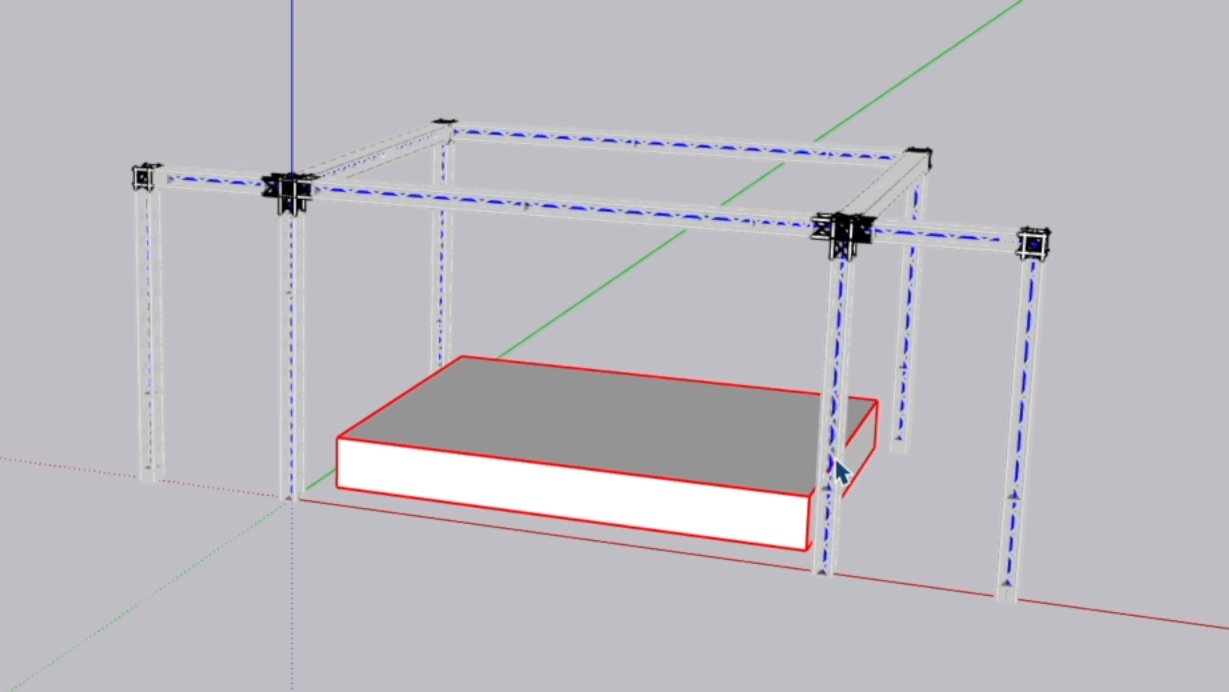
Dseconds Truss Designer
Dseconds Truss Designer — completed truss rig with connectors

From simple paths to complete truss layouts.

Draw a path in SketchUp, select your truss series, and place the truss. Place Full Layout fits an exact combination of catalogue piece lengths to every side of the layout and adds the connectors.
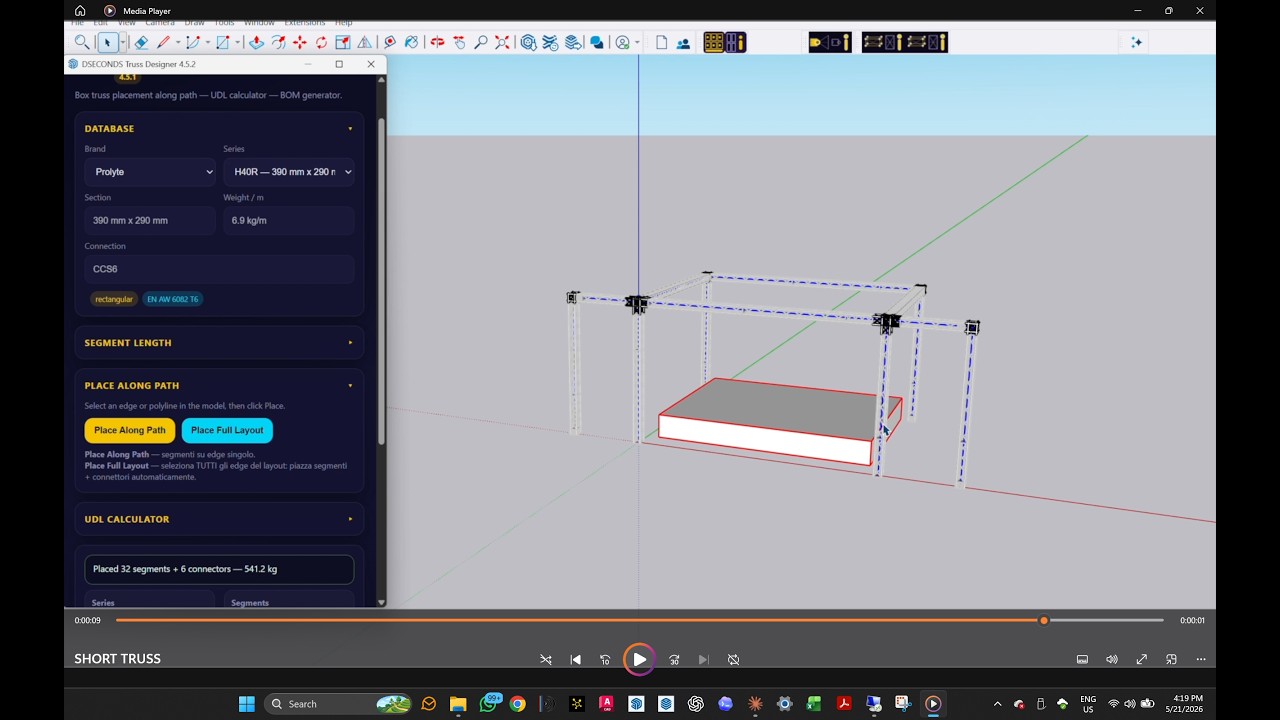
Dseconds Truss Designer — watch on YouTube

▶ Watch on YouTube — Dseconds Truss Designer workflow overview

Dseconds Truss Designer — Place Along Path and Full Layout workflow
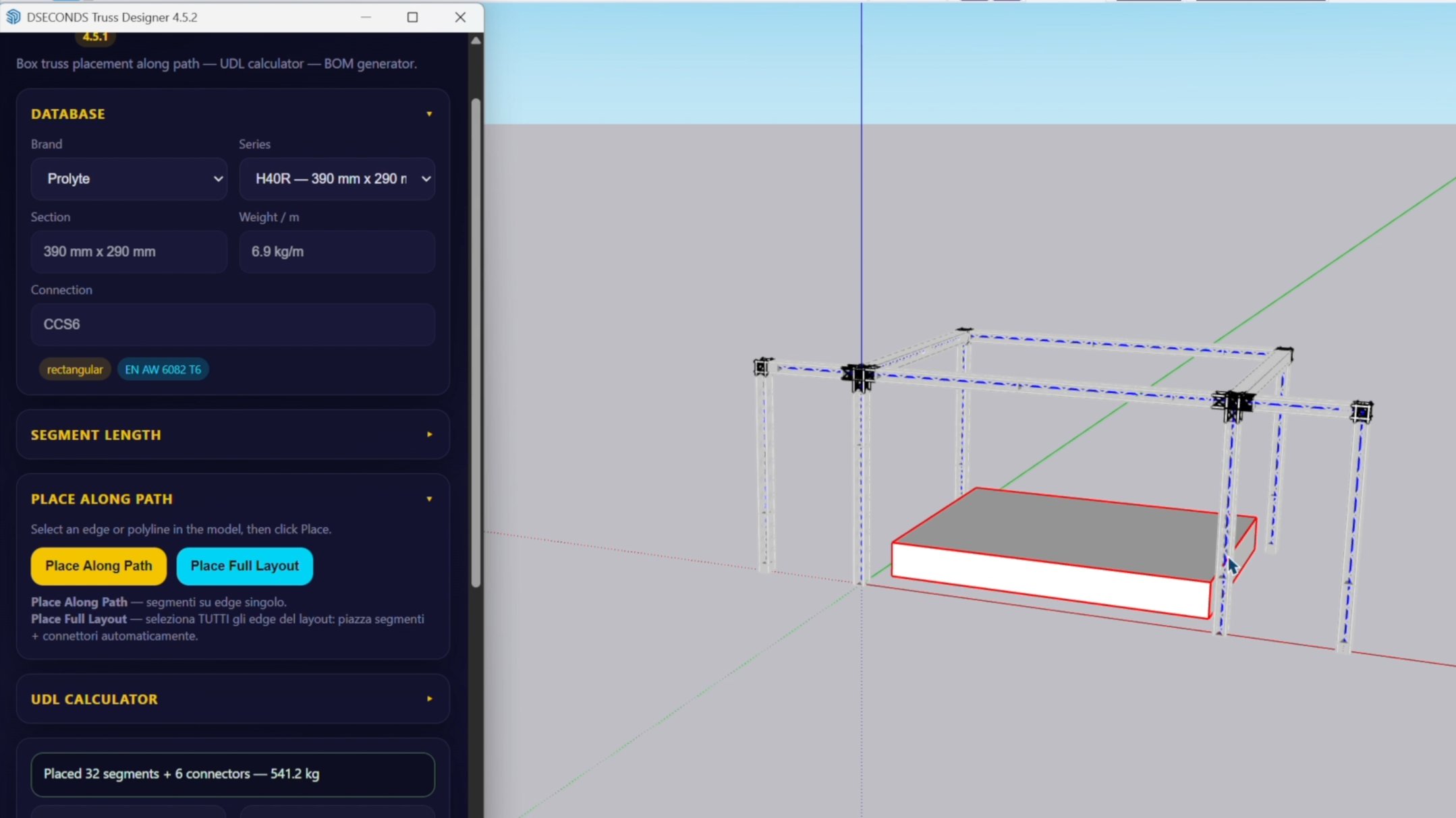
Dseconds Truss Designer — Place Full Layout with truss and connectors generated
Place Full Layout

32 segments + 6 connectors

541.2 kg total — generated in seconds from simple path geometry.

Dseconds Truss Designer — full truss rig without dialog
Result

Full truss rig in context

4-point rig with legs and connectors, modelled from the manufacturer's dimensions.

Two ways to build truss layouts in SketchUp.

Truss Designer has two placement workflows. They read the path you draw differently, so pick the one that matches how you want to plan the truss.
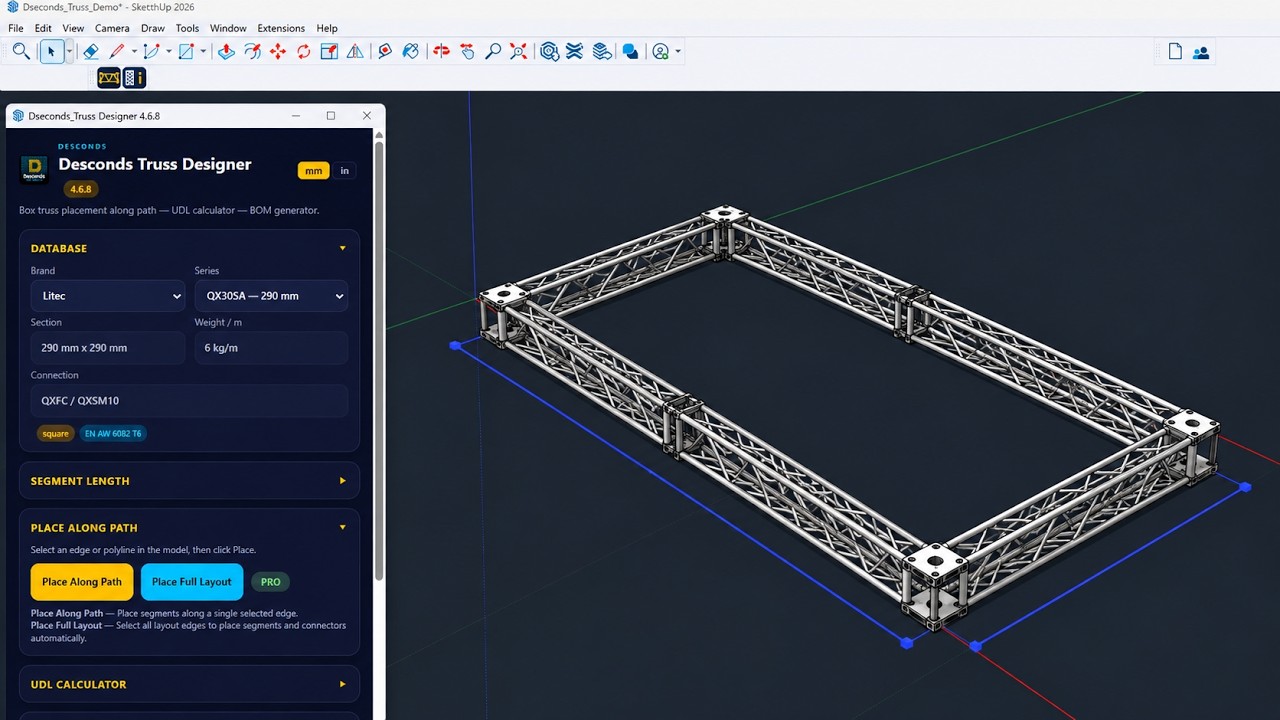
Dseconds Truss Designer for SketchUp | Place Along Path vs Full Layout

▶ Place Along Path: the path is the truss centreline (FREE + PRO). Place Full Layout: the path is the outer boundary (PRO).

FREE + PRO

Place Along Path

drawn line = truss centreline you choose the piece length
  1. Draw the line in SketchUp and select it.
  2. Choose the series and the piece length you want.
  3. Place: that piece is repeated end to end along the line. If it doesn't divide evenly, you choose to overshoot or stop short.

You decide exactly which pieces make up each run — useful for straight runs and for building from the stock you actually have. The truss is centred on the line you draw. Connectors are not added automatically.

FREE: up to 2 truss runs per SketchUp file. Undo (Edit › Undo) gives the slot back, and a new file starts with 2 again. PRO: no limit.

PRO

Place Full Layout

drawn path = outer edge truss footprint stays inside
  1. Draw the complete layout — every side, corner and junction — and select all of it.
  2. Choose the series.
  3. Place Full Layout: Truss Designer fits an exact combination of catalogue piece lengths to each side and places the corner and junction connectors.

The path is treated as the outer edge of the truss, not its centreline. Each side is moved inward by half the truss section width, so the physical footprint of the truss sits inside the outline you drew — when the sides fit exactly, a 6 × 4 m outline gives a rig whose outside dimensions are 6 × 4 m. If the catalogue lengths can't fill a side exactly, the plugin tells you which sides to redraw, or lets you place at the nearest buildable size, either inside the path or slightly larger than it.

Best for: complete or complex layouts (closed perimeters and rigs with corners) where building every run by hand would be slow. It doesn't do structural calculations — check loads and rigging with a qualified engineer.

In short: FREE gives you the core truss design workflow, Place Along Path. PRO removes the FREE project limits and adds Full Layout for complete and complex layouts.

Professional truss tools inside SketchUp.

📏

Place Along Path Free + PRO

Select a line, choose a truss piece, and the plugin repeats it end to end along the line, centred on it. Full manual control over which pieces are used.

🔄

Place Full Layout PRO

Builds the complete layout from a multi-segment path with corners and junctions, and places the connectors. For a closed layout the path is the outer boundary, and the truss footprint sits inside it. Ignores the piece selected for Place Along Path.

🧮

Automatic piece-length fitting

Place Full Layout looks for an exact combination of the series' standard piece lengths for every side. If none exists, it suggests buildable side lengths, or places at the nearest buildable size inside or slightly outside the path — your choice.

⚖️

UDL Calculator PRO

Reads load figures from published manufacturer catalogue data and interpolates between the available catalogue spans. Design-aid tool — always verify with a structural engineer.

📋

Production BOM

Total truss weight, all piece types with quantities and product codes, on screen in Free and PRO. HTML & CSV report export, with your client logo, is PRO.

🏗️

6 Manufacturer Database

Litec, Eurotruss, Prolyte, Tomcat, Alutruss and Global Truss. 27 series, 132 connectors. Data from manufacturer documentation.

🔢

Metric & Imperial

Auto-detects SketchUp model units. Toggle mm ↔ inches at any time. UDL shows kg/m or lbs/ft accordingly.

💡

Manual piece selection tip

Working with specific stock? Split the guide line into segments and assign the correct truss piece to each — full control over the bill of materials.

FREE vs PRO.

FREE lets you design real truss layouts with the core Place Along Path workflow, using 3 truss series from 3 brands: Global Truss F23, Litec QX30SA and Tomcat Medium Duty 20.5×20.5 Plated. PRO removes the FREE project limits and adds Full Layout for complete and complex layouts.

FeatureFREEPRO
Place Along Path — build a run from the piece you choose✓✓
Truss runs per SketchUp fileUp to 2 (Undo frees a slot)Unlimited
Place Full Layout — complete layout, path = outer boundary, automatic piece-length fit and connectors✗✓
Truss catalogue3 series, 3 brands27 series, 6 brands
UDL Calculator — load/UDL data across the full catalogue✗✓
BOM display on screen✓✓
HTML & CSV report export✗✓
Client logo in reports✗✓
Metric / Imperial toggle✓✓
Available Now · Founder Launch Pricing

Truss Designer PRO

Standard price
$129/year
Founder price
$89/year
Save $40/year · 31% off

Keep your Founder rate while your subscription remains active.

Founder pricing is available during the Founder launch period.

Get Truss Designer PRO — $89/yr

The Founder launch price is available only during the Founder launch period. Prices shown exclude applicable VAT and taxes. Final taxes are calculated at checkout based on your billing location.

Truss Designer FAQ

Do I need to draw paths before opening the plugin?
Yes — draw your guide paths in SketchUp before opening Truss Designer. Straight edges for linear runs, connected edges for complex layouts with corners. The plugin reads the path geometry; it does not create geometry on its own.
What’s the difference between Place Along Path and Full Layout?
Place Along Path builds one run from the piece you choose: select a line, pick the piece length, and that piece is repeated end to end, centred on the line. You control the composition; no connectors are added. Place Full Layout (PRO) builds a complete layout from a multi-segment path: it fits an exact combination of catalogue piece lengths to every side, places the corner and junction connectors, and treats the path as the outer edge of the truss, keeping the truss footprint inside it.
Is Place Along Path available in FREE?
Yes. Place Along Path is the core workflow and works the same in FREE and PRO. FREE uses the 3 FREE series (Global Truss F23, Litec QX30SA, Tomcat Medium Duty 20.5×20.5 Plated) and allows up to 2 truss runs per SketchUp file.
What is the FREE two-run limit?
In FREE, up to 2 truss runs can be placed in one SketchUp file. It is a per-file limit, not a lifetime quota: Edit › Undo on a placed run gives its slot back, and a new SketchUp file starts with 2 slots again. The Truss Designer panel shows how many are left. PRO removes the limit.
What does Full Layout do?
You draw and select the whole layout — every side, corner and junction — and choose a series. Place Full Layout then fills each side with an exact combination of that series’ catalogue piece lengths and places the matching connectors, so a complete rig is built in one step instead of run by run. It ignores the piece length selected for Place Along Path. Full Layout is a PRO feature.
Why does Full Layout keep the truss inside the path?
Because in Full Layout the path you draw is the outer edge of the rig, not the centreline of the truss. A truss has a physical section (for example 290 mm for QX30SA), so if it were centred on your lines half of it would stick out beyond them. Full Layout moves each side inward by half the section width, so the outside of the truss lands on your outline: draw the space the rig must fit, and the rig fits it. If the catalogue lengths can’t fill a side exactly, the plugin lists the sides and suggested lengths to redraw, or lets you place at the nearest buildable size, either inside the path (smaller) or slightly larger than it. Straight single-line paths have no inside, so they are placed on the line.
When should I use Place Along Path instead of Full Layout?
Use Place Along Path when you want to decide exactly which pieces make up a run — for example to match the stock you have available, or for a single straight run — and when you want the drawn line to be the truss centreline. Use Full Layout when you have a complete layout with corners and want it built in one step, with the drawn outline as the outside of the truss. Neither is better in general; they suit different jobs, and you can use both in the same model.
What do I get when I upgrade to PRO?
Full Layout; unlimited truss runs per file; the full catalogue of 27 truss series from 6 brands; HTML & CSV report export; your client logo in reports; and the UDL Calculator with load/UDL data across the full catalogue. Place Along Path and the on-screen BOM are available in both FREE and PRO.
Do I need to reinstall Truss Designer after upgrading?
No. FREE and PRO are the same Truss Designer installation. Activate your licence key under Extensions › Dseconds Truss Designer › License / Activation… and PRO unlocks in the installation you already have — there is no separate PRO plugin to install.
Place Full Layout gives an unexpected piece combination. What can I do?
Check the overshoot vs undershoot setting — the dialog shows both options and lets you choose. If you need precise control, split the guide line into individual segments and use Place Along Path for each segment, selecting the specific piece for each one.
How do I use the UDL Calculator?
Enter your span length and estimated total hanging load. The plugin returns the UDL value and percentage of safe working load interpolated from published manufacturer catalogue data. This is a design-aid tool — always verify results with a qualified structural engineer before production use.
My path uses pieces from specific stock. How do I control which pieces are placed?
Split your guide line into separate segments — one segment per truss piece. Use Place Along Path for each segment and select the exact piece you want for that section. This gives you full manual control over the BOM, useful when working with available rental stock.
Connectors are not appearing in my layout.
Connectors are placed automatically only with Place Full Layout. Place Along Path does not add connectors automatically — use Place Full Layout for multi-segment paths if you need automatic connectors.

Start free today.

One download. The free version is the complete plugin running in Free mode, with Place Along Path and 3 truss series from 3 different brands. A PRO licence key unlocks Full Layout and the full catalogue in the same installation, with no reinstall.

Download Free Version 4.6.9 · SketchUp 2024+
Get PRO — $89/yr

Install via SketchUp → Extensions → Extension Manager → Install Extension
══════════════════════════════════════════ -->
D
Dseconds Support
Typically replies instantly
Hi 👋 I'm the Dseconds plugin support assistant. Ask me anything about installation, plugin usage, or pricing — I respond in your language. 🌍